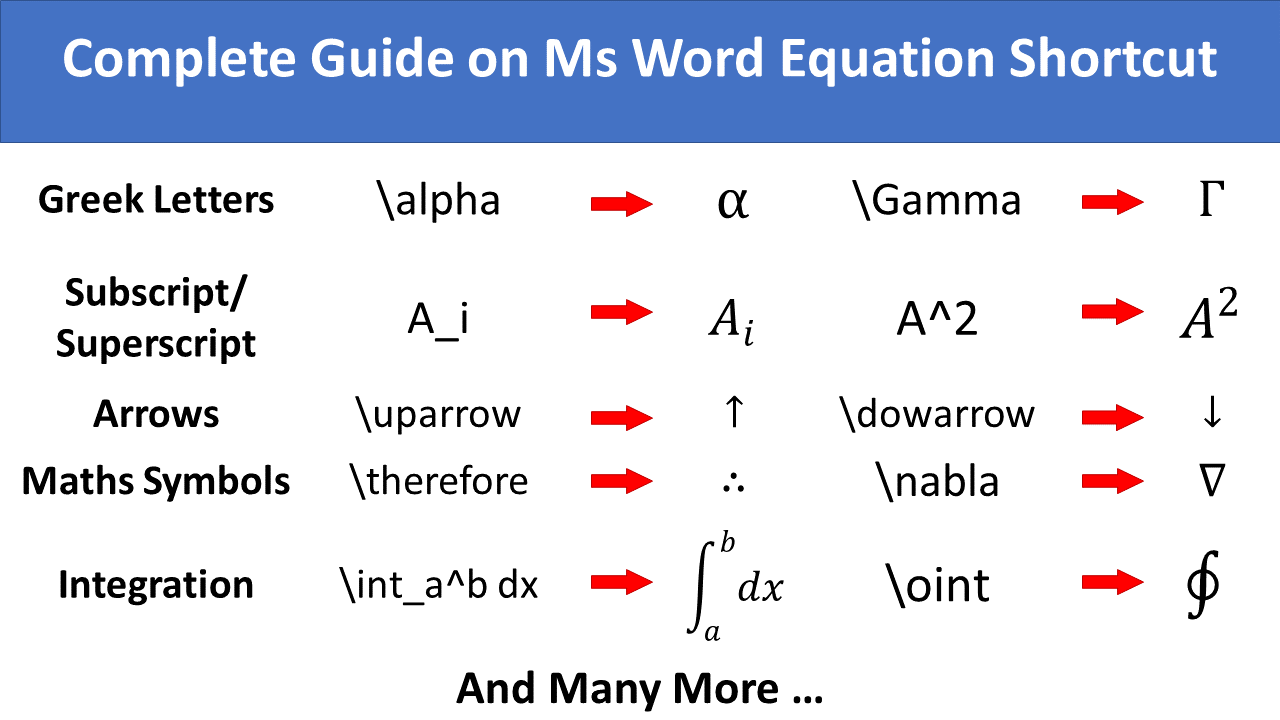
Math AutoCorrect and the equation editor make it faster to type mathematical equations, Greek letters, fractions, matrices, roots, integrals, and accents in Microsoft Word. This extensive reference includes original examples and videos, but some use older UnicodeMath behavior. Start with the verified instructions below and choose the correct equation input mode before applying more advanced legacy shortcuts.
Quick start: In desktop Word for Windows press Alt + = to insert an equation. Use UnicodeMath input, type \alpha, and press Space to insert α. To type a symbol in ordinary Word for Windows text, enter its Unicode hex value, such as 03B1, and press Alt + X. These are different features.
Word equation editor: UnicodeMath vs LaTeX (important distinction)
Word supports UnicodeMath and LaTeX linear input in compatible desktop editions. Math AutoCorrect commands such as \alpha, \infty, \times, and \sqrt are principally described for UnicodeMath conversion. In LaTeX mode, grouping and structure rules are different. Switch input format using the equation tools before copying shortcuts; not every command is interchangeable between modes. Microsoft’s official equation-format guide explains both modes.
- In Word for Windows, choose Insert > Equation or press Alt + =. For supported Word for Mac versions, Microsoft documents Ctrl + = for inserting an equation; available menus and shortcuts vary by edition.
- In the equation ribbon, choose Unicode input if you want to use the Math AutoCorrect examples shown here.
- Type a backslash command, such as
\infty, and press Space to convert it into ∞. Some structured expressions require an additional Space to build into professional format. - To switch to LaTeX input, explicitly select LaTeX mode, then use syntax documented for that mode rather than assuming all UnicodeMath shortcuts will carry over.
Verified beginner examples
| Goal | UnicodeMath entry (inside equation) | Result |
|---|---|---|
| Greek alpha | \alpha + Space | α |
| Infinity | \infty + Space | ∞ |
| Multiplication | \times + Space | × |
| Division sign | \div + Space | ÷ |
| Integral | \int + Space | ∫ |
| Summation | \sum + Space | ∑ |
| 2×2 matrix | (\matrix(a&b@c&d)) + Space | Two rows, two columns (equation structure) |
| Fraction | a/(b+c) + Space | Stacked fraction in compatible conversion mode |
Microsoft’s Math AutoCorrect command list documents supported symbols and notes that commands are case-sensitive. The UnicodeMath guide includes the matrix and fraction examples. Results can differ with input mode and conversion settings.
Degree sign, ring operator, and uncommon shortcuts
For an actual degree sign ° in ordinary Word for Windows text, type 00B0 and press Alt + X. The ring operator ∘ (Unicode 2218) is a different symbol; \circ may produce ∘ rather than the temperature symbol. Do not assume an older \degc sequence works in every version of Word. For temperature, type the real degree sign and C: 25 °C.
Before using the historical reference tables below
The videos, screenshots and advanced examples later in this article were written for earlier Word releases and may use special shortcuts, grouping behavior or add-ins that differ in today’s Office. They are retained as reference material. Confirm a complex result in your own Word edition before using it in a thesis or manuscript. Some Latin-looking glyphs in the older Greek table are visual stand-ins and should not be copied as Greek Unicode letters; use the verified 24-letter Greek Unicode table instead.
Enabling Math Autocorrect
Most version of Microsoft Word, Math AutoCorrect is enabled by default. To ensure you can visit, File Menu → Options → Proofing → Autocorrect Options → Math AutoCorrect and ensure box against “Replace text as you type” is checked. These shortcut work only inside Equation Editor. However, if you want to use it outside Equation Editor, then check “Use Math Autocorrect Rules outside of math regions“
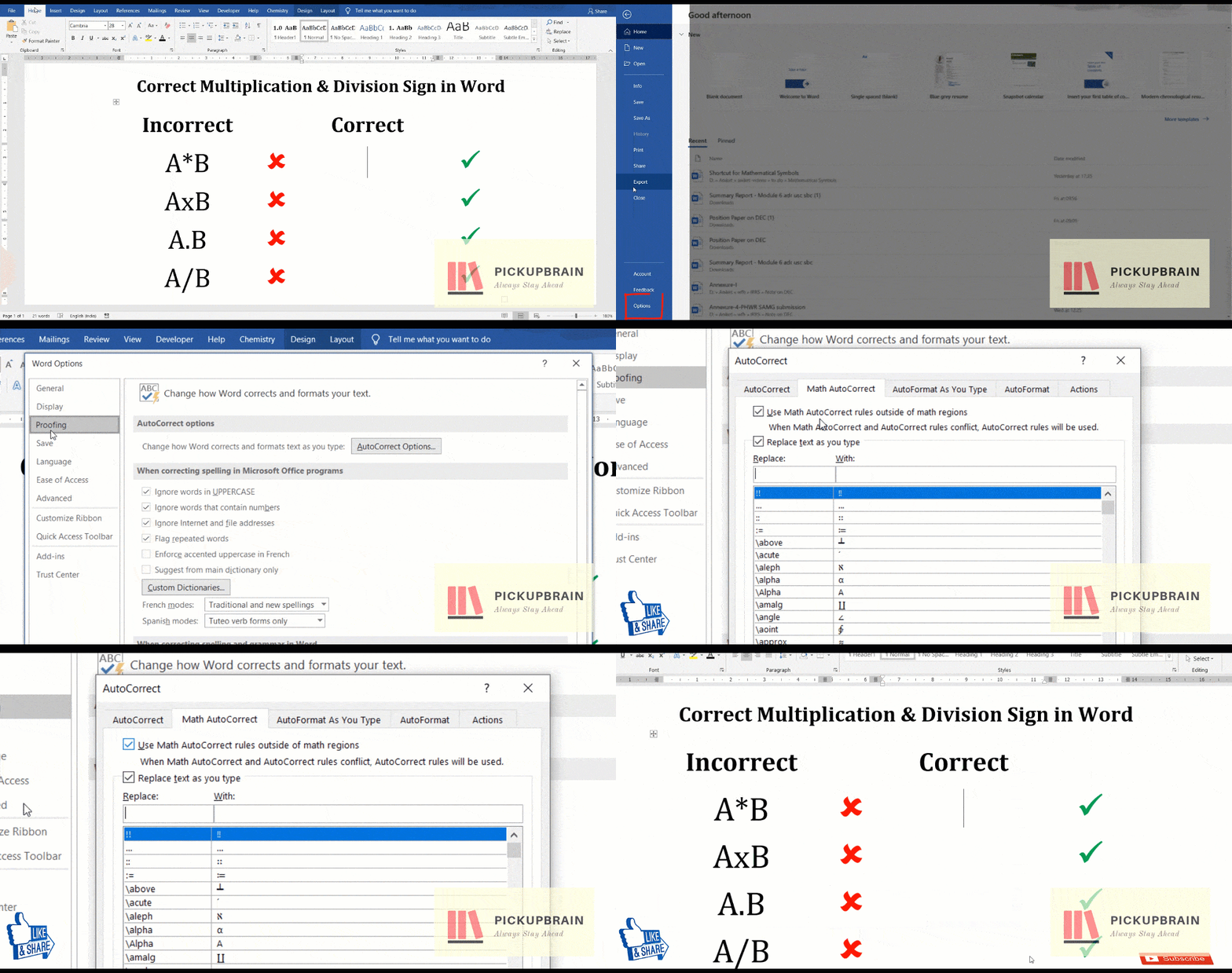
Equation Editor Shortcut
Shortcut to get equation editor in Ms Word and Power Point is “Alt + =” (i.e. hold down Alt key while typing ‘=’). Although you can also click on “Equations” under the “Insert” Tab to get it.
Spaces is an important part of Math AutoCorrect shortcut. It tells Ms Word and Power Point when it is time to translate a part of equation into Mathematical Symbols/Operators. For clarity whenever necessary, space are shown as <sp> in Math AutoCorrect formula.
Subscript & Superscript
Equation editor shortcut for subscript and superscript is _ and ^. Anything after _ or ^ will get converted into subscript or superscript respectively, after hitting space. To include space in subscript or superscript, group them in () or parenthesis. These grouping parenthesis don’t appear after Math AutoCorrect. Grouping is also important as it distinguish between  and
 . While adding pre-subscript or pre-superscript, use \zwsp along with _ and ^ sign as shown below.
| Use | For | Use | For |
|---|---|---|---|
| A_circle<sp> |  | r^2<sp> |  |
| A_(big circle)<sp> |  | H^(2 square)<sp> |  |
| r^2_outer<sp> |  | r^2_(outer circle) |  |
| \zwsp<sp>_c<sp> |  | \zwsp<sp>^c<sp>R |  |
| \zwsp<sp>_c^d<sp>R |  | \zwsp<sp>_c^d<sp>_e^f<sp> |  |
Letters
Blackboard Bold letters or Double letters:
Use \doubleXX, where XX is the required uppercase letter for e.g. use \doubleA for  and \doubleR for
 .
Fraktur letters
Fraktur is a calligraphic hand of the Latin alphabet. We can easily write it in Ms Word using \frakturXX where XX is an uppercase letter. For e.g. use Ms Word shortcut “\frakturB” for “ “ and “\frakturG” for “
 “.
Greek letter
Greek letter has 24 different alphabets. There are four distinct ways of typing Greek alphabets in Microsoft Word. Of these, Math AutoCorrect method is the easiest to remember and the fastest of all four. This method of typing Greek letters is as easy as typing its spelling after \ (backslash). To get lower case Greek Alphabet, type name of Greek letter after \ in lower case (for e.g. \alpha for  ) and for upper case Greek Alphabet type name of Greek letter after \ in Title Case (e.g. \Gamma for
 ). You can also use Alt codes for typing Greek letters.
| Name of Greek letter | Uppecase | Shortcut | Lowercase | Shortcut |
|---|---|---|---|---|
| Alpha | A | \Alpha | | \alpha |
| Beta | B | \Beta |  | \beta |
| Gamma | | \Gamma |  | \gamma |
| Delta |  | \Delta |  | \delta |
| Epsilon | E | \Epsilon |  | \epsilon |
| Zeta | Z | \Zeta |  | \zeta |
| Eta | H | \Eta |  | \eta |
| Theta |  | \Theta |  | \theta |
| Iota | I | \Iota |  | \iota |
| Kappa | K | \Kappa |  | \kappa |
| Lambda |  | \Lambda |  | \lambda |
| Mu | M | \Mu |  | \mu |
| Nu | N | \Nu |  | \nu |
| Xi |  | \Xi |  | \xi |
| Pi |  | \Pi |  | \pi |
| Rho | P | \Rho |  | \rho |
| Sigma |  | \Sigma |  | \sigma |
| Tau | T | \Tau |  | \tau |
| Upsilon |  | \Upsilon |  | \upsilon |
| Phi |  | \Phi |  | \phi |
| Chi | X | \Chi |  | \chi |
| Psi |  | \Psi |  | \psi |
| Omega |  | \Omega |  | \omega |
Scientific and Mathematical Symbols
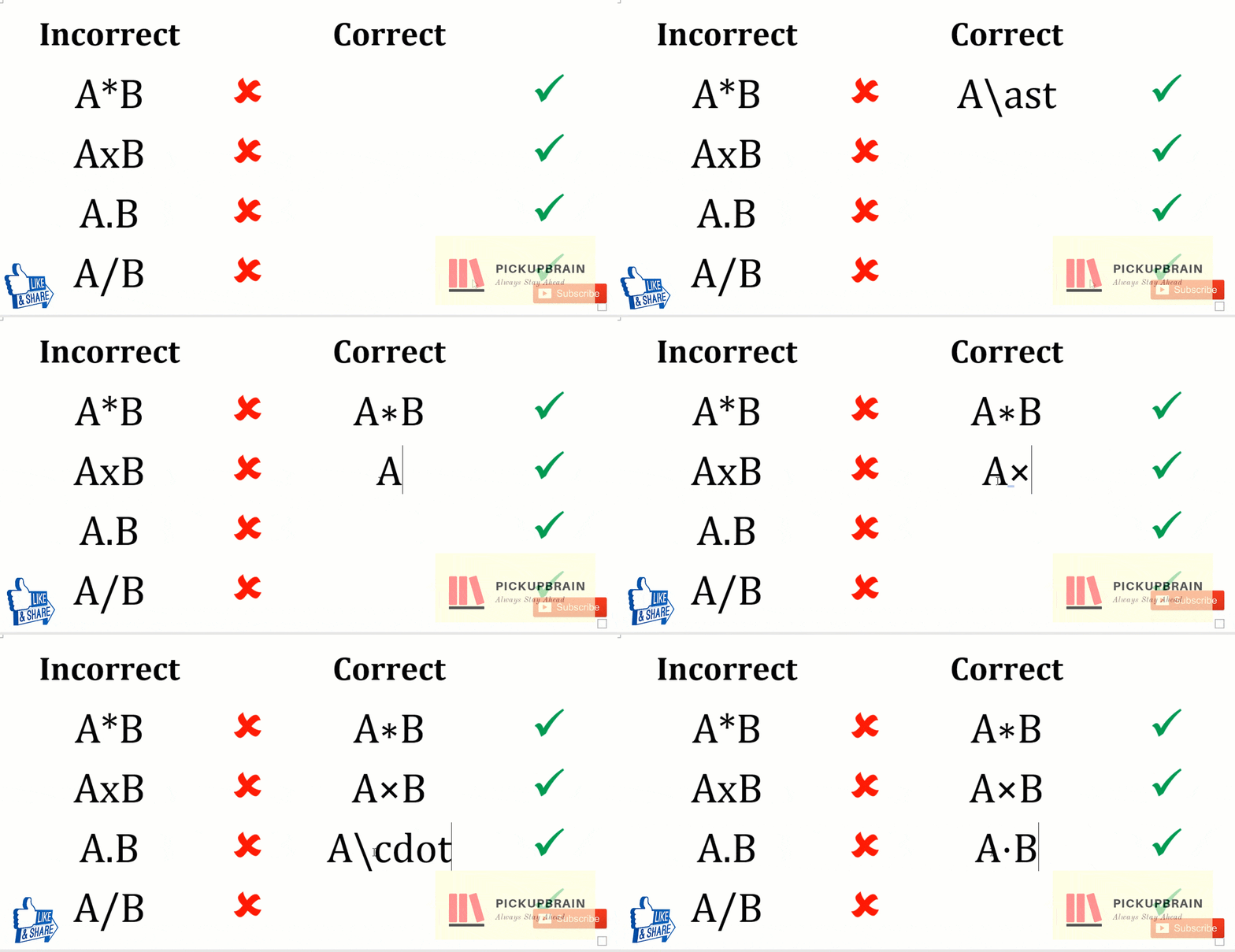
Equation editor shortcut for scientific and mathematical symbols like infinity, different arrows, operators (like partial, del and nabla), conditional symbols, dot, cross, mapsto, perpendicular, set symbols, for all, equivalent, congruent, angle, proportional etc are given in the following table.

| Symbol Name | Symbol | Ms Word Shortcut | Symbol Name | Symbol | Ms Word Shortcut |
|---|---|---|---|---|---|
| Infinity | ∞ | \infty | Hbar | ℏ | \hbar |
| Right Arrow | → | \rightarrow, -> | Left Arrow | ← | \leftarrow |
| Up Arrow | ↑ | \uparrow | Down Arrow | ↓ | \downarrow |
| North-east Arrow | ↗ | \nearrow | North-west Arrow | ↖ | \nwarrow |
| South-east Arrow | ↘ | \searrow | South-west Arrow | ↙ | \swarrow |
| Left Right arrow | ↔ | \leftrightarrow | Up Down Arrow | ↕ | \updownarrow |
| Rightwards Double Arrow | ⇒ | \Rightarrow | Leftwards Double Arrow | ⇐ | \Leftarrow |
| Upwards Double Arrow | ⇑ | \Uparrow | Downwards Double Arrow | ⇓ | \Downarrow |
| Partial | ∂ | \partial | Nabla | ∇ | \nabla |
| Less Than Equal To | ≤ | \le | Greater Than Equal To | ≥ | \ge |
| Double Less Than | ≪ | \ll | Double Greater Than | ≫ | \gg |
| Times | 𝑎 × 𝑏 | a \times b | Tensor Product or O Times | 𝑓(𝑡) ⊗ 𝑔(𝑡) | f(t)\otimes g(t) |
| Dot | 𝑎 ⋅ 𝑏 | a\cdot b | O Dot | 𝑎 ⊙ 𝑏 | a\odot b |
| O Plus | 𝑥 ⊕ y | x\oplus y | O Minus | 𝑥 ⊖ 𝑦 | a\ominus y |
| Maps To | 𝑎 ↦ | a\mapsto b | Right Arrow with Hook | ↪ | \hookrightarrow |
| Dots | 𝑎 … 𝑏 | a\dots b | Center dots | 𝑎 ⋯ 𝑏 | a\cdots b |
| Perpendicular | 𝑎 ⊥ 𝑏 | a \bot b | 𝑎 ⊤ 𝑏 | a \top b | |
| Intersection | 𝐴⋂𝐵 | A\bigcap B | Union | 𝐴⋃𝐵 | A \bigcup B |
| Big Square Cup | 𝐴⨆𝐵 | A\bigsqcup B | Big U with Plus | 𝐴⨄𝐵 | A \biguplus B |
| Star | 𝑎 ⋆ 𝑏 | a \star b | For All | ∀ | \forall |
| In | ∈ | \in | Exists | ∃ | \exists |
| Big Wedge | ⋀ | \bigwedge | Big Ve | ⋁ | \bigvee |
| Equiv | ≡ | \equiv | Congruent | ≅ | \cong |
| Not Equal To | ≠ | \ne | Approximately Equal | ≈ | \approx |
| Similar | ∼ | \sim | Similar To | ≃ | \simeq |
| Natural Joint of Bowtie | ⋈ | \bowtie | Box | □ | \box |
| Subset | ⊂ | \subset | Empty Set | ∅ | \emptyset |
| Therefore | ∴ | \therefore | Because | ∵ | \because |
| Plus or minus | ± | \pm or +- | Minus or plus | ∓ | \mp |
| Angle | ∠ | \angle | Proportional To | ∝ | \proto |
| Degree C | 22 °C | 22 \degc |
Accent
For various reasons you need to have an accent like bar, grave, tilde, dot (for denoting derivative) above symbol. We can easily achieve these using following word shortcut.
| Accent | For | Equation editor shortcut |
|---|---|---|
| Bar |  | x\bar<sp> |
| Double bar |  | x\Bar<sp> |
| Under bar |  | x\ubar<sp> |
| Double under bar |  | x\uBar<sp> |
| Acute |  | x\acute<sp> |
| Grave |  | x\grave<sp> |
| Vector |  | x\vec<sp> |
| Hat |  | x\hat<sp> |
| Left-right arrow |  | x\tvec<sp> |
| Left harpoon |  | x\lhvec<sp> |
| Right harpoon |  | x\rhvec<sp> |
| Dot |  | x\dot<sp> |
| Double dot |  | x\ddot<sp> |
| Triple dot |  | x\dddot<sp> |
| Four dot |  | x\ddddot<sp> |
| Breve |  | x\breve<sp> |
| Check |  | x\check<sp> |
| Tilde |  | x\tilde<sp> |
| Left vector (or left arrow) |  | x\lvec<sp> |
Grouping and brackets
Equation editor causes brackets (such as [], {} and ()) to grow to fit the size of expression within them. However, parenthesis used for grouping are not displayed in the final formatted expression. However, when parenthesis is required to be displayed, it must be doubled (one for grouping which will vanish in final formatted expression and other for displaying). Escape sequence (\ followed by desired bracket is used to prevent bracket from being reformatted.
| To Display | Use | Comment |
|---|---|---|
 | x/y | / is used for fraction |
 | [x/y] | [] bracket automatically expands to adjust fraction |
 | {x/y} | |
 | (x/y) | Parentheses displayed as they not used for grouping |
 | a/(p+q) | Parentheses used for grouping (denominator here) are not displayed |
 | a/((p+q)) | Parentheses used for grouping (denominator here) is not displayed |
 | [ a\atop b \close y | |
 | |(p|q|r)/(c+d)| | Again parentheses used for grouping are not displayed |
 | |a|b|x/(a+b) | Grouping parentheses not displayed |
 | \norm a \norm |
Square root, Cube root, and more
Equation editor shortcut for square root, cube root and higher roots are \sqrt(), \cbrt() and \sqrt(n&x) respectively.
| Symbol | Equation Editor Shortcut |
|---|---|
 | \sqrt(x)<sp> |
 | \cbrt(x+1)<sp> |
 | \sqrt(n&x)<sp> |
For more shortcut and example on root sign, visit our blog on Shortcut for Square root, and higher order roots
Matrices
Empty Matrix
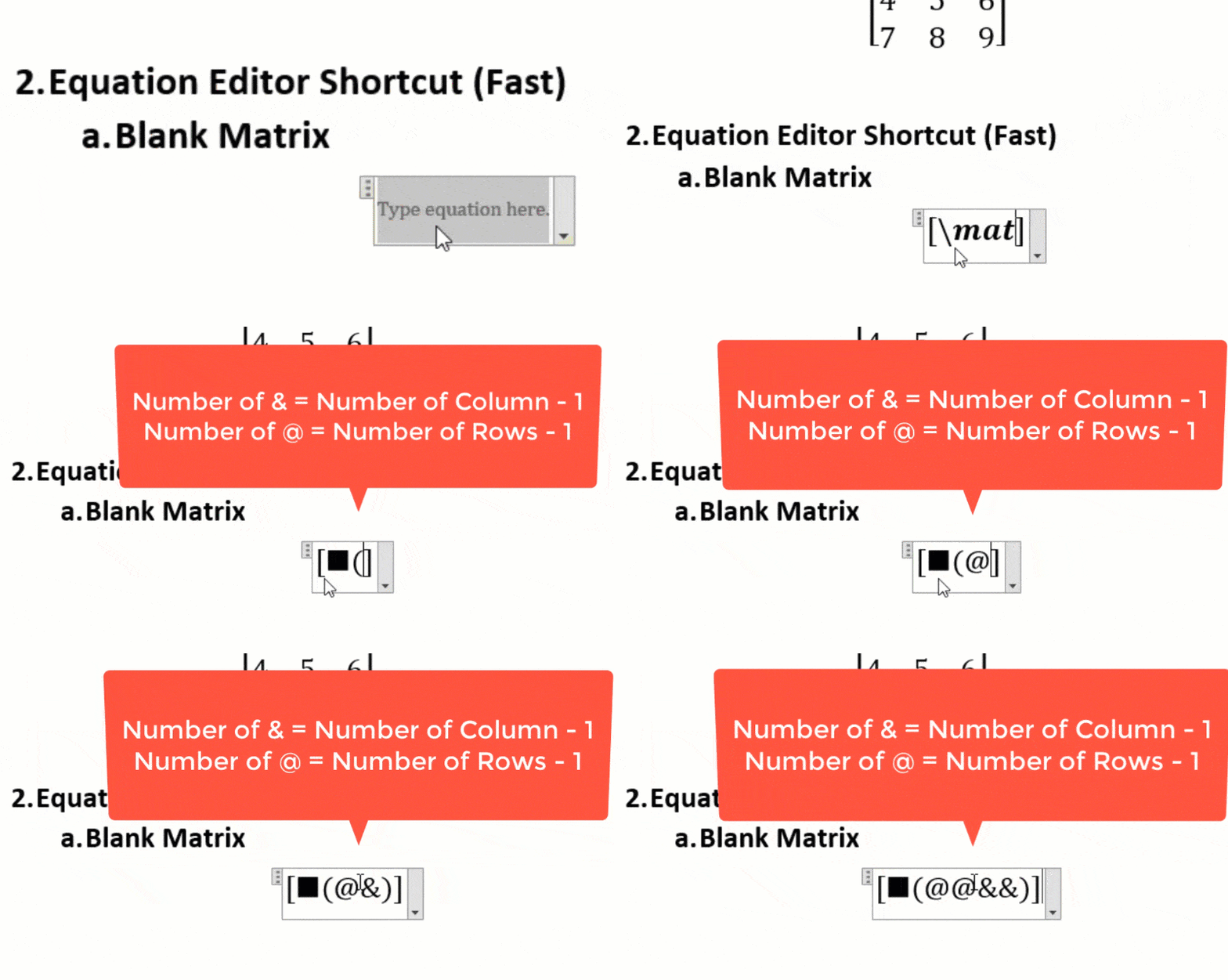
The basic equation editor shortcut for creating an empty matrix of custom size is \matrix(@@&&&)<sp>. Matrix size decided by number of @ (for rows) and & (for columns) respectively. Number of @ and & symbol is one less than number of rows and columns, respectively.
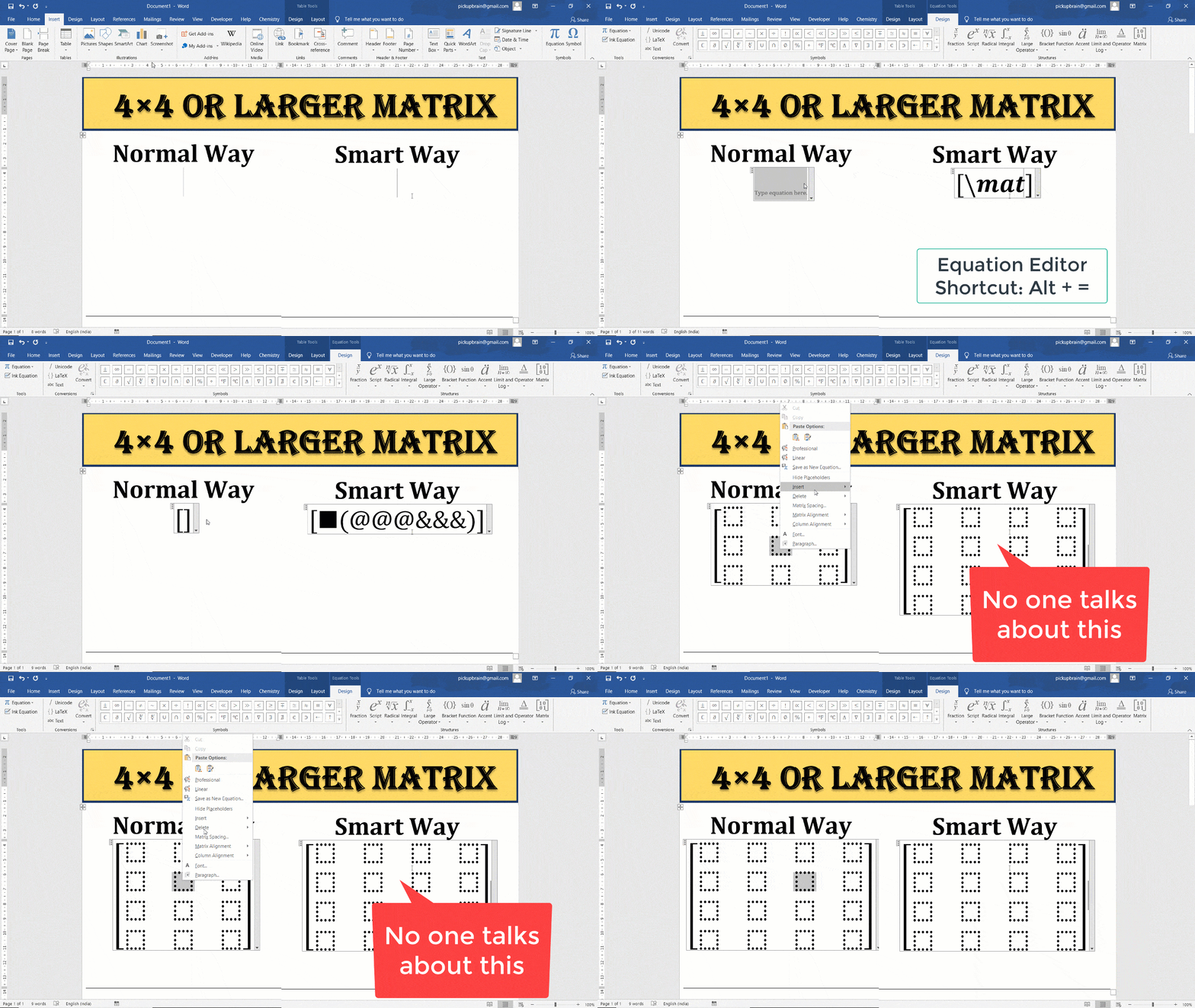
Matrix with elements
You can also create matrix filled with elements using above shortcut. Using this method, we enter elements of the matrix row wise, starting with the top row. Use & to move to the next column and @ for the next row.
| Sr. No. | Equation Editor Shortcut | Output Matrix |
| 1 | \matrix(@@&) |  |
| 2 | \pmatrix(@@&) or (\matrix(@@&) |  |
| 3 | \Vmatrix(@@&) |  |
| 4 | [\matrix(1&2&3@4&5&6@7&8&9)] |  |
| 5 | \pmatrix(1&2@3&4@5&6) |  |
For more details and example, visit our blog on different methods and equation editor shortcut for typing matrix in Ms Word.
Piecewise Functions
There are two ways to insert piece wise function in using Equation Editor shortcut in Ms Word. First one uses \cases() method while the second one uses \matrix(). In both the cases, desired piecewise functions are entered inside the parenthesis.
Like matrix, @ is used as a row separator. To get only the opening curly braces ‘{‘ which automatically extends the height of piecewise function, use \close in place of closing ‘}’.
| Sr No | Equation Editor Shortcut | Output | Note |
|---|---|---|---|
| 1 | f(x) = {\cases(x,x>=0@-x,x<0)\close |  | @ is used as row separator and \close is required to ensure opening { expands vertically to cover all cases |
| 2 | f(x) = {\matrix(x & x>=0@-x & x<0)\close |  | Similar to above, & is used as column separator |
| 3 | f(x) = {\matrix(x & x>=0@-x & x<0) |  | Without \close, opening ‘{‘ doesn’t expands |
Integral, Sum and Product
Shortcut for integral sign, sum and product signs are \int, \sum and \prod. You can use _ and ^ for inserting text below and above signs, respectively.
| Equation Editor Shortcut | Output | Note |
|---|---|---|
| \int<sp>f(x)dx |  | |
| \int_x=0^1<sp>f(x)dx |  | _ for lower limit and ^ for upper limit |
| \iint<sp>f(x)dx |  | \iint for double integral |
| \iint\below(S)<sp>ds |  | use \below to put text below symbol |
| \iiint\above(V)<sp><sp>dV |  | use \above to put text above symbol |
| \oint<sp>f(x)dx |  | \oint for cyclic integral, similarly use \oiint for cyclic double Sum, integral |
| \sum_(i=1)^n<sp>A_i<sp> |  | \sum_(i=1)^n<sp>A_i<sp>\sum for sum symbol and _ & ^ sign for getting text below and above sum. Parenthesis can be used for grouping text with spaces |
| \prod_(n=0)^N<sp>x^n<sp> |  | Similar to sum. |
Conclusion
Math Autocorrect shortcut provides useful shortcuts for typing most of the mathematical expression. They are often the fastest and efficient way of typing equation in Ms Word.
Troubleshooting equations and Math AutoCorrect in Word
- The command remains as typed text: make sure you are inside an equation in UnicodeMath mode, enter the right case and press Space.
- The fraction stays linear: check automatic conversion settings or convert the equation to Professional formatting.
- Matrix symbols or ampersands appear as text: confirm you entered the example inside the equation editor with appropriate input mode.
- Math AutoCorrect does not work outside equations: on supported Windows desktop Word versions, visit File > Options > Proofing > AutoCorrect Options > Math AutoCorrect, and check the outside-math option. It does not guarantee that every structural command works as ordinary text.
- A Greek uppercase letter looks like A, B or E: those symbols may be different underlying Unicode characters. For accurate documents, use the verified Greek Unicode reference.
- Word for the web behaves differently: features and keyboard shortcuts may not match installed Word for Windows or Mac.
Related reference guides
For reliable single symbols, see Word mathematical symbols and Unicode codes; for matrices, insert a matrix in Word; for subscripts and superscripts, subscript and superscript in Word.
Related Posts

C P Gupta is a YouTuber and Blogger. He is expert in Microsoft Word, Excel and PowerPoint. His YouTube channel @pickupbrain is very popular and has crossed 9.9 Million Views.
I cannot thank you enough for the article. Much thanks again. Cool!.
Thank you is not enough for the knowledge you have shared. Keep on doing your good work.
Thank you very much indeed.
Thank you so much. This is super helpful to me.
Just brilliant. Thank you so much and may your tribe increase.
Glad you liked it.
Very helpful. This is what I have been struggling with all this time. Thank you.
Thanks very much dear for the comment. Glad you liked it.
Thank you very much, I’m at Word 2016 and my accent shortcuts doesn’t work, if I write x\bar it’ll do x ̅ instead of ̅x ̅
You should press space twice. First space is to convert \bar to bar sign and other to put under x. Thanks for highlighting this mistake I will update it.
Hello, is there a way to do an arc symbol? Like “breve” but with the accent flipped?
Wow!!! I can’t believe typing mathematical equations can be made easy like this. This is first hand help for everyone that has been depending on mouse for insertion of symbols, equations and its structures. Lots of thank you to the author or writer of this blog.
Thanks dear for the feedback. Yes, this feature is really awesome and saves lots of time while inserting equations.
Glad to know that it was useful. Please share this to your friends and colleagues who may be interested to know this.
Thank you very much. Highly appreciated
Thanks dear. Glad to know that.
Thanks!
this has changed my life and so much time and I really appreciate everything you’re doing here
– stat major in college
Thanks dear for the appreciation. Glad to know it helped.
Thanks dear. Glad to know it was useful.
You save my day! I’m so tired of using the mouse to click on the icon in Equation tab, it takes me forever to switch constantly between my mouse and keyboards. I never know that all I need to do is typing right from the keyboards. Thank you so much for this helpful and easy to understand article. Good luck to you!
Thanks dear for the comment. Glad to know that it was helpful.
Pingback: Ms Word shortcut & Unicode for symbols used in Maths & Science
Pingback: How to Type the Standard Deviation Symbol (σ) in Microsoft Word - PickupBrain: Be Smart
Thank you so much, Gupta, for this article.
It’s on my bookmarks, and I go back to it regularly to learn more.
I have a question: I want to write an equation where the LHS contains a text with three short rows, and the RHS is a regular equation. Is there a way to do it?
Thank you again,
Sarit
This is brilliant thank you very much. I have self taught most of this but your post helped find the few bits I couldn’t figure out. I know there is some sort of feature called \phantom or something to make larger brackets the size of a specific equation which would then keep the equation invisible. I remember it was like \phantom or \vphantom or something. Do you know what I’m talking about?